


Qualified can automatically create new Salesforce Leads, update Lead and Contact records, and add Leads and Contacts to Salesforce campaigns. New information is synced to Salesforce automatically via workflow or manually by a sales rep in the Visitor 360.
Automatic syncs by workflow
Qualified recommends a few default workflows to ensure data syncs to Salesforce, for both creating new leads and updating existing lead and contact records.
Create Leads
To create a workflow that creates new leads in Salesforce, follow these steps:
- Create a workflow with the Lead captured trigger.
- (Optional) add filters to determine whether leads are only created if they meet some threshold.
- (Optional) set values on visitor fields that have been mapped to Qualified, like Status.
- Add a Push to an external system action
- Set the destination to Salesforce
- Ensure the “Create Lead” toggle is selected
The Lead captured workflow will trigger when a visitor has an identified email address and does any of the following:
- Book a Meeting
- Speak to a Rep
- Conclude an Experience
- End their web session
Update existing Lead or Contact record
To create workflows that update existing Lead or Contact records in Salesforce, follow these steps:
- Create a workflow with the Conversation with a rep or bot trigger.
- (Optional) add filters to determine whether leads are only created if they meet some threshold.
- (Optional) set values on visitor fields that have been mapped to Qualified, like Status.
- Add a Push to an external system action
- Set the destination to Salesforce
- Ensure the Create lead toggle is off (your previous workflow should cover these!)
- Ensure the Update existing Lead or Contact record toggle is on.
- Repeat steps 1-4.3 with the Meeting offered step to account for visitors who engage with non-chat-based experiences
Manual syncs by sales reps
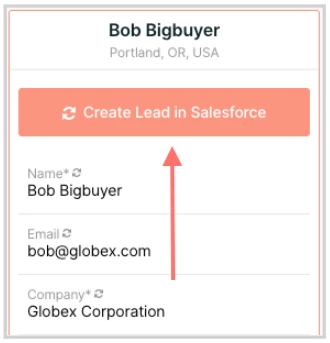
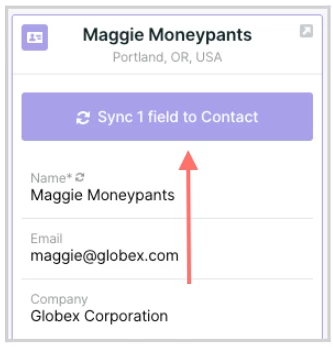
Sales reps can also manually sync new information about visitors to Salesforce. In particular, when sales reps pounce on visitors, they must manually create a lead record as they learn new information about the visitor. As reps engage with visitors and add information to the Visitor 360, there are two options:
- For visitors without a matching email in your Salesforce instance, reps can click Create lead in Salesforce in the Visitor 360 to create a new lead record and be assigned ownership.
- For visitors that are matched to your Salesforce instance, sync new details with existing Lead or Contact records in Salesforce by clicking Sync field(s) to Contact in the Visitor 360.
Sync visitors to Salesforce campaigns
Qualified can also add Leads and Contacts to specific Salesforce campaigns. There are two methods:
- Create a workflow or workflows with the Add to a campaign step based on relevant actions in Qualified.
- Add Salesforce campaign mapping within Qualified. Every Lead or Contact that Qualified maps information to is added to the campaign you specify.
How Qualified avoids duplicates
When Qualified initiates a sync, existing duplicate records may be found. Qualified decides which record to match based on the following logic:
- Duplicate Salesforce Leads or Contacts with the same email: The most recently updated Lead or Contact is prioritized.
- A Salesforce Lead and Contact share the same email: The matched Contact is used by Qualified.
- Duplicate Salesforce Accounts are found: The Account with the highest number of Opportunities takes precedence. If the number of Opportunities between the two Accounts is identical, then the Account with the highest number of Contacts is used. If the Accounts are still tied, then the one most recently updated is recognized by Qualified.
- A visitor email matches multiple Lead, Contact, or Prospect records in your marketing automation platform: The most recently updated record is used.
Troubleshooting
- Why was my Lead not created in Salesforce? Review your experience to confirm that it includes a Push to an external system step. If not, add one. If you push Qualified leads to a marketing automation platform by default and now the Salesforce Lead is missing, there may be an issue with your marketing automation platform - Salesforce connection. Review that connection and any possible sync errors.
- Why was my existing Lead not updated in Salesforce? Test your experience in an incognito browser and create a new Lead in Salesforce. Close that browser window, open a new incognito one to start a fresh session, and test the experience again with the same email address. If your test Lead does not update correctly, go to Settings → Integration → Salesforce → Lead Mapping. Verify that the affected Lead field is mapped. If your test Lead updates correctly, then compare the visitor’s information in Qualified to the Salesforce Lead. The visitor may not have entered new Lead field information.



.svg)


