


Actions are the building blocks of Qualified experiences. Each experience will use these actions to determine how Qualified interacts with your visitors.
See our specific articles detailing general actions, as well as actions used in Conversations and Meetings experiences. There are also actions for notifications and interacting with integrations.
How to add experience actions
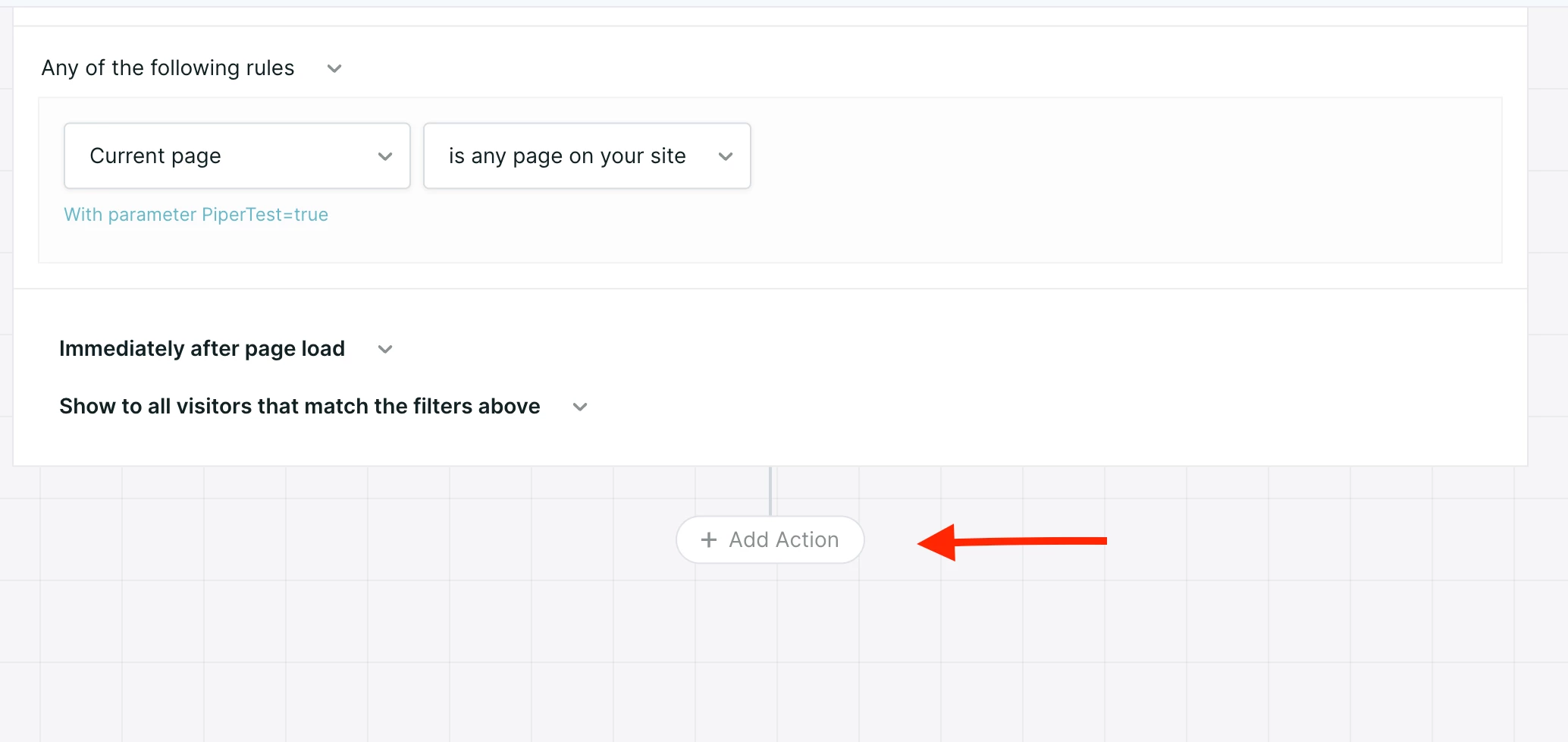
Within any experience, click the + Add Action button within an experience to add a new step. Experiences can be built dynamically, so actions may be added before or after most existing steps.
Note that there are some steps which form endpoints of an experience; new actions cannot be placed after these steps.
A menu of actions will appear on the right side of your screen. This menu will dynamically populate depending on the action(s) preceding your current step.
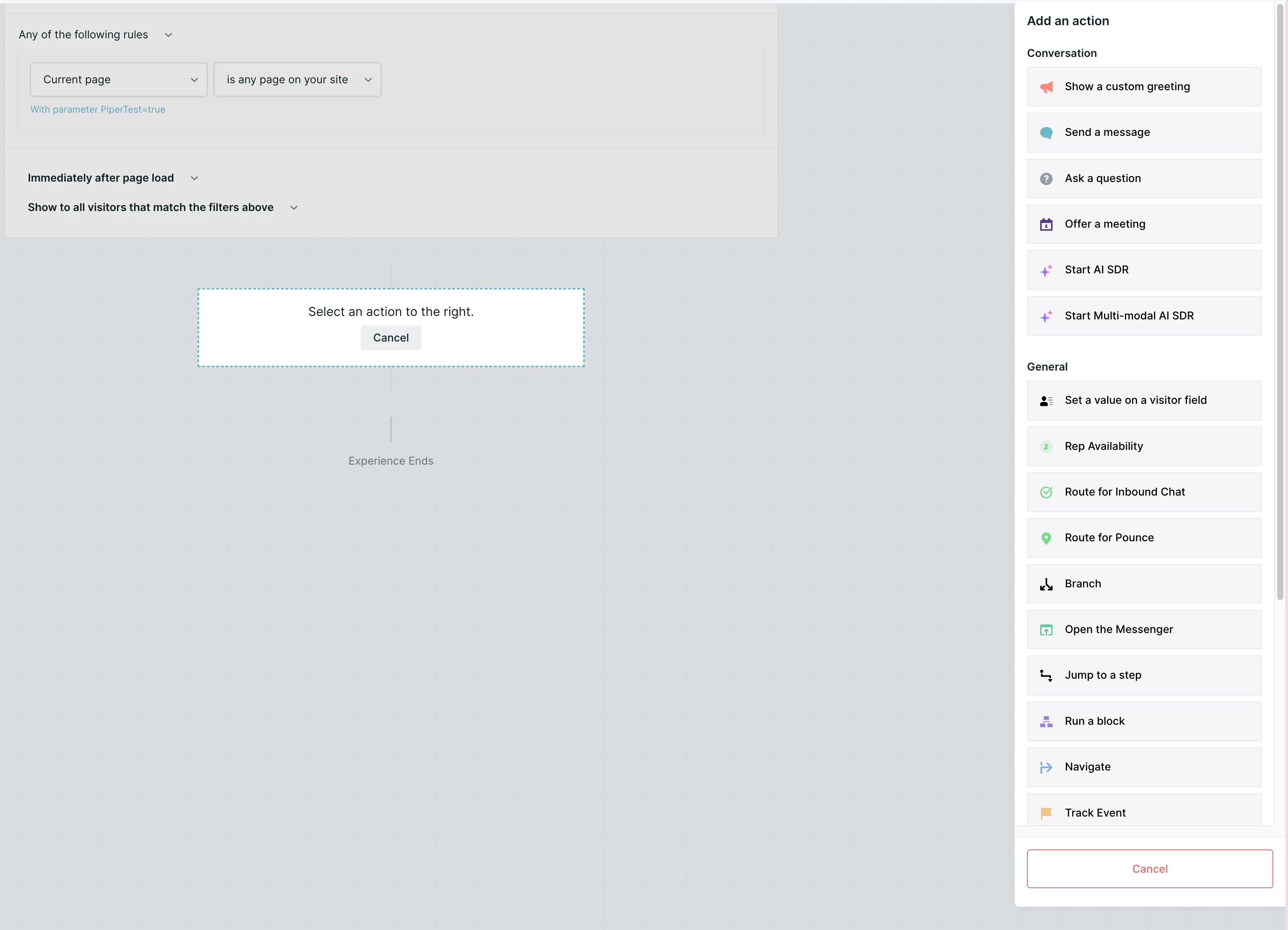
Select the action, and then configure it as necessary.
Action timing
All actions have timing settings that will determine how quickly they will activate after the previous step:
- After visitor opens messenger: This action will only activate when the visitor clicks the messenger icon in the lower right corner of your website. This option will be greyed out once the messenger has been opened by any other step.
- Immediately after previous step: This action will fire as soon as the previous step has resolved. This is the default setting for most actions.
- [5] seconds after previous step: This action will wait a number of seconds, and then execute. The default setting is 5 seconds. This is used most commonly for the Navigate action, to warn your visitor they’re about to move to a new page and allow them time to read the message.



.svg)


