


Qualified admins have full control over what types of meetings can be scheduled, and can customize the meeting invite and confirmation emails sent to attendees. In this article, we’ll walk through how to set up meeting types, routing options, email customization, and how to manage meeting cancellations and rescheduling.
Meeting types overview
Meeting types allow you to define the various kinds of meetings your visitors can schedule with your sales reps. Once a visitor schedules a meeting, Qualified sends them an invite email, which includes a link to the rep’s video conferencing tool. You can also customize the invite and reminder messages for each meeting type.
Once your meeting type settings are finalized, you can integrate it into any of the following experiences:
- Form or button experience with an Offer a meeting step
- Automatic or manual experience with an Offer a meeting step
By selecting the appropriate meeting type in the Offer a meeting step, Qualified will offer a meeting based on the settings outlined in the article below.
Create a new meeting type
To set up a new meeting type, follow these steps:
- As an admin, go to Settings → Meetings → Meeting Types.
- Click + Create new meeting type.
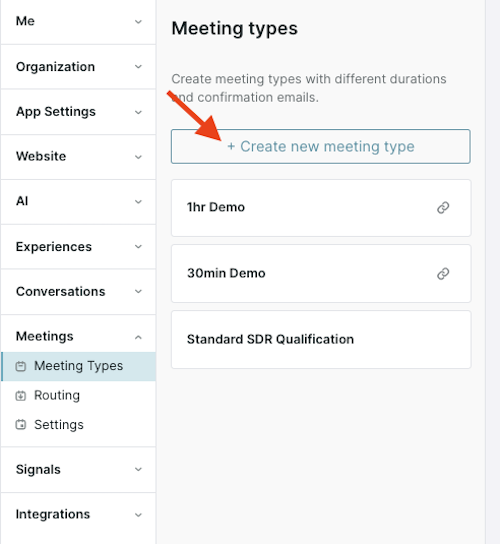
- Enter a name for the meeting type. This name will only appear in Qualified for reps to see. The visitor will see the subject line you set up in the 'Email Confirmation and Reminders' tab.

- Click Save in the top-right corner.
Once created, configure the meeting type using the tabs for Meeting Settings, Routing, and Email Confirmation & Reminders.
Customize meeting settings
Each meeting type can be customized based on your business needs under the Meeting settings tab.

Below are the options you can configure:
- Duration: Select the length of the meeting (e.g., 30 minutes, 1 hour).

- Minimum meeting notice: Set how far in advance a meeting can be scheduled, giving reps time to prepare. For example, if you set a 1-day notice and a visitor tries to schedule a meeting on a weekend, the earliest available time would be the next business day, plus the 1-day notice.
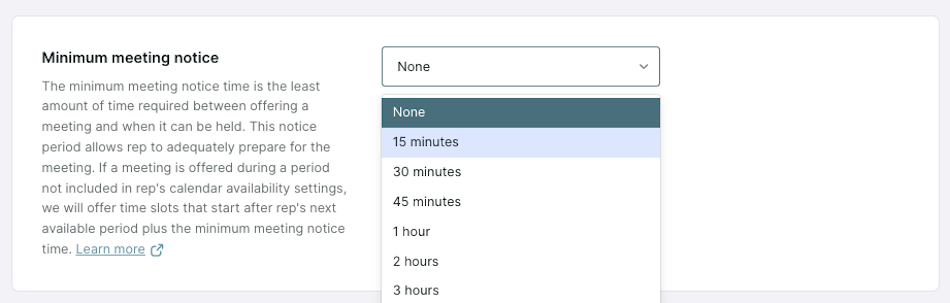
Reps can set their own “Minimum meeting notice” in their calendar settings, which can override the global meeting type settings. Qualified will respect the longer of the two.
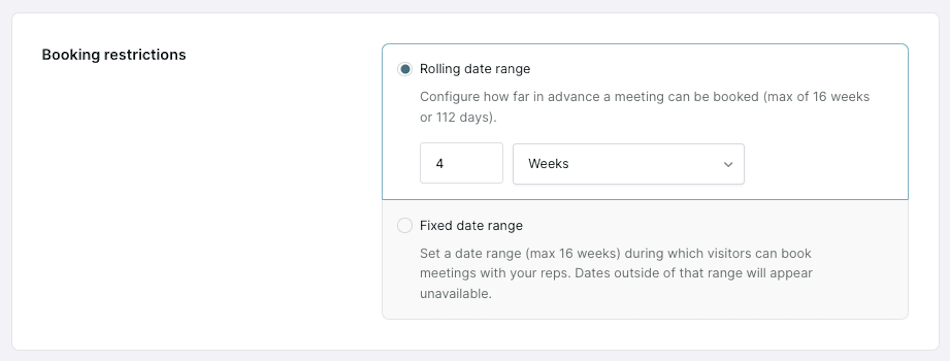
- Booking restrictions:
- Rolling date range: Set how far in advance meetings can be booked (e.g., up to 4 weeks in advance).
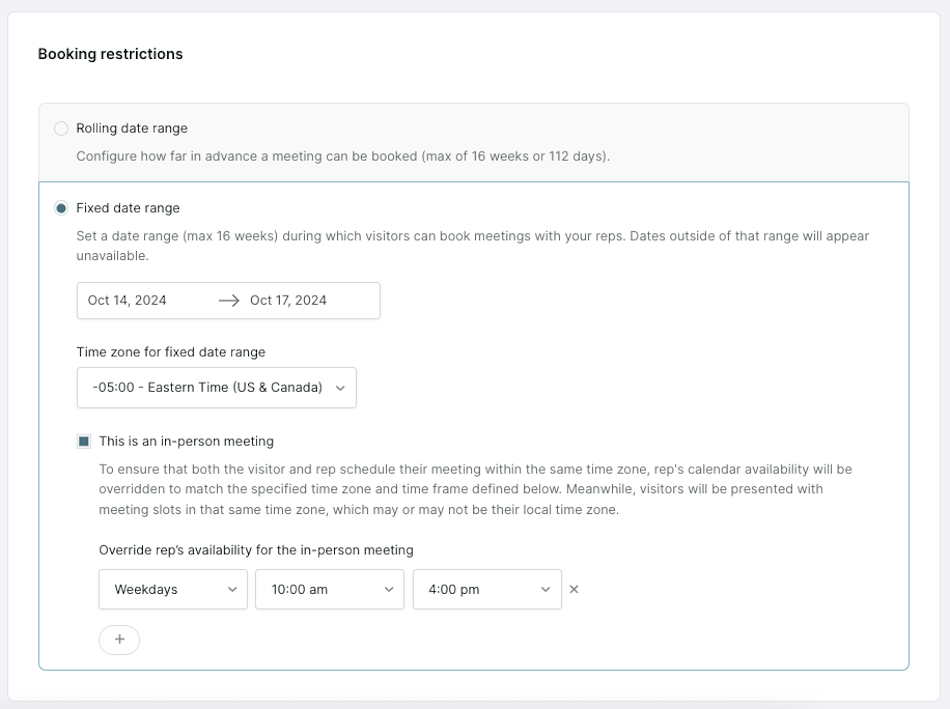
- Fixed date range: Define a specific date range and time zone when visitors can book meetings (e.g., only during a promotional period or an in-person event).
- This is an in-person meeting: For an in-person meeting that takes place in a different time zone from your reps, select Fixed date range, then set the time zone and calendar availability for the location where the meeting happens. These values override the rep's own time zone and calendar availability.
- No-show reporting: Allow reps to mark no-show events for this meeting type when a prospect doesn't attend the meeting. This setting can override the org-wide setting configured in Meeting Settings. Learn more about No-Show Reporting here: Managing org-wide meeting settings.

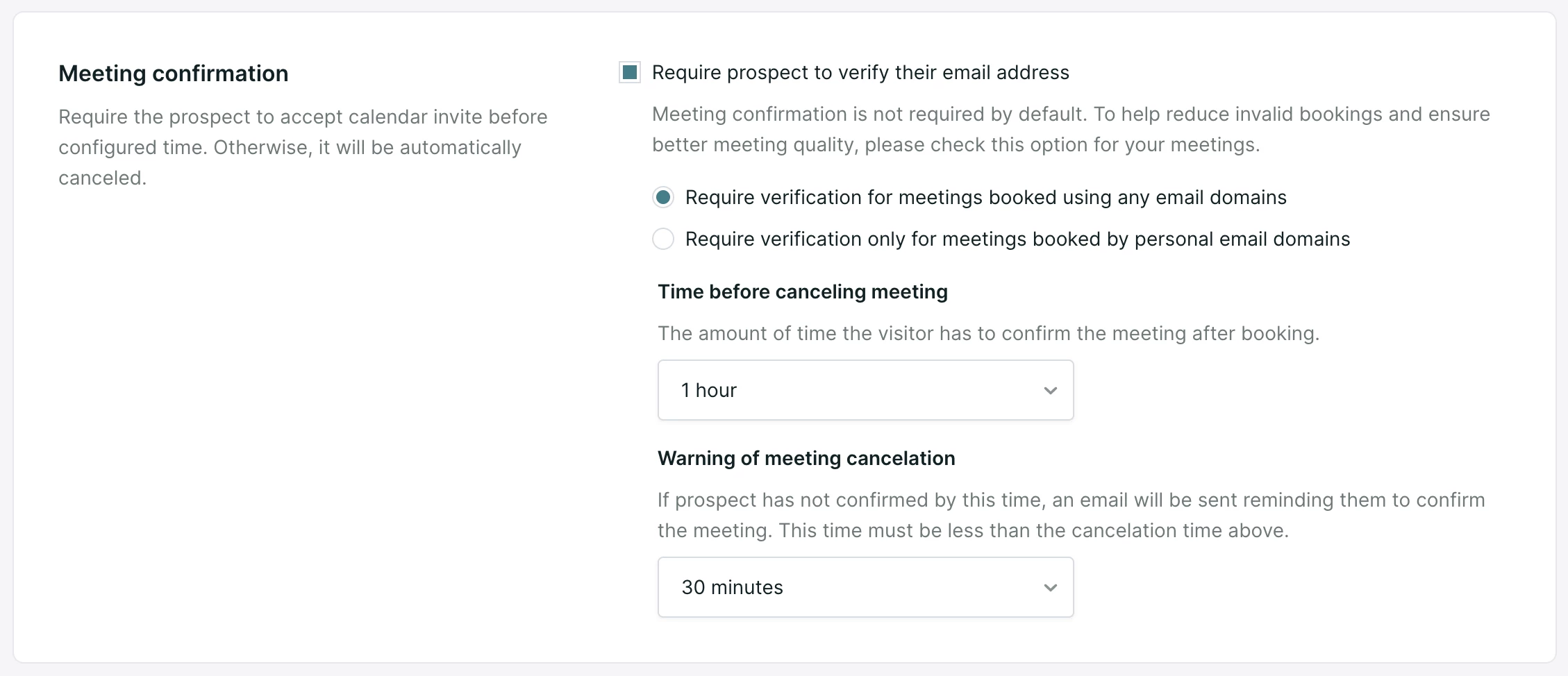
- Meeting confirmation: Adds a confirmation step for visitors, which helps reduce spam bookings from fake accounts.
When you turn this on for a meeting type:
- The visitor books a meeting through the normal flow of choosing a time and entering their email.
- Qualified places a temporary hold on the rep's calendar and directs the visitor to their email to accept the invitation.
- The visitor confirms by clicking Yes on the RSVP in the invitation email, or by setting their attending status to Yes on the calendar event.
- Once they confirm, the visitor receives a second email confirming the meeting is set.
-
If the visitor does not confirm in time, Qualified releases the calendar hold and updates the Salesforce event to show the meeting as canceled. Two timing values are configurable on the meeting type:
- How long the visitor has to confirm before the meeting is canceled. The default is 1 hour.
- How many minutes before that cancellation Qualified sends the visitor a reminder email, giving them a last chance to confirm.
Note: Meeting confirmation does not currently apply to meetings booked via meeting links and the live booker; this flow will only function for meetings booked via conversation experiences or the full-screen meeting booker. Additionally, meeting confirmation will not function correctly for aliased emails, i.e. user+test@example.com.
- Booking channels: Configure the channels through which reps can distribute this meeting.
- Allow meeting booking via chat: Allow reps to offer this meeting type during live chat conversations.
- Allow meeting booking via Live Booker: Allow reps to choose this meeting type while scheduling a meeting using the Live Booker.

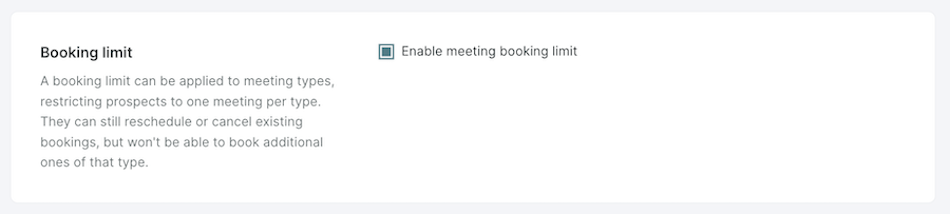
- Booking limit: Limit visitors to booking only one meeting per meeting type, prompting them to reschedule if they already have one booked.
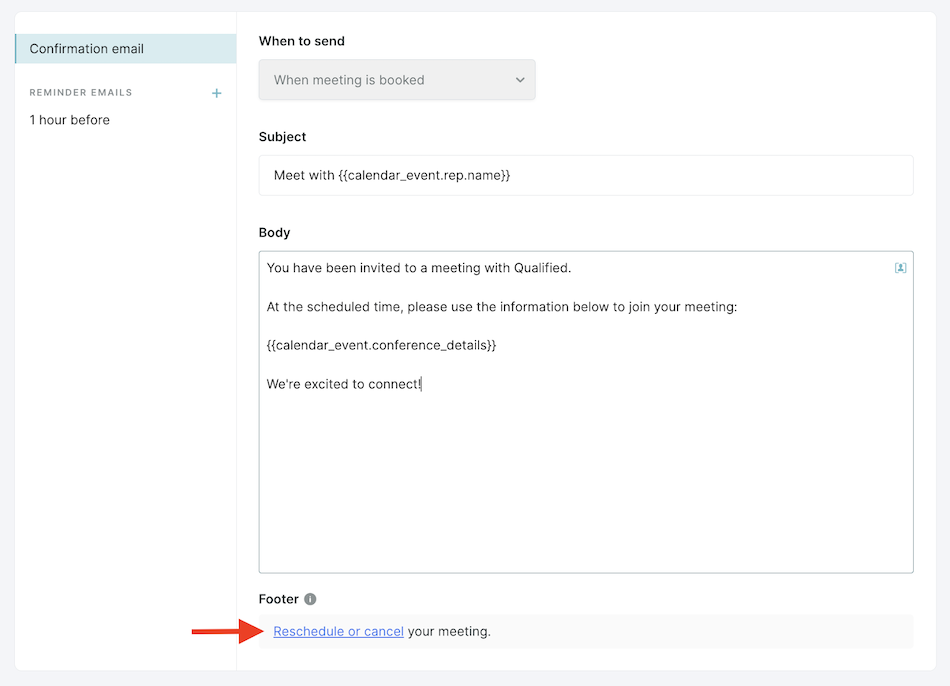
- Reschedule and cancel link: Allow visitors to reschedule or cancel their meeting with a link in the meeting invite.

Configure how meetings are routed: smart routing vs. round robin
Once the meeting type is created, you’ll need to configure how meetings are routed to the appropriate reps under the Routing tab.

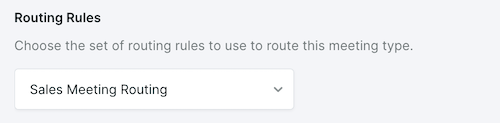
Routing rules
Choose the set of routing rules to use to route this meeting type. Learn more about configuring meeting routing rule sets here.
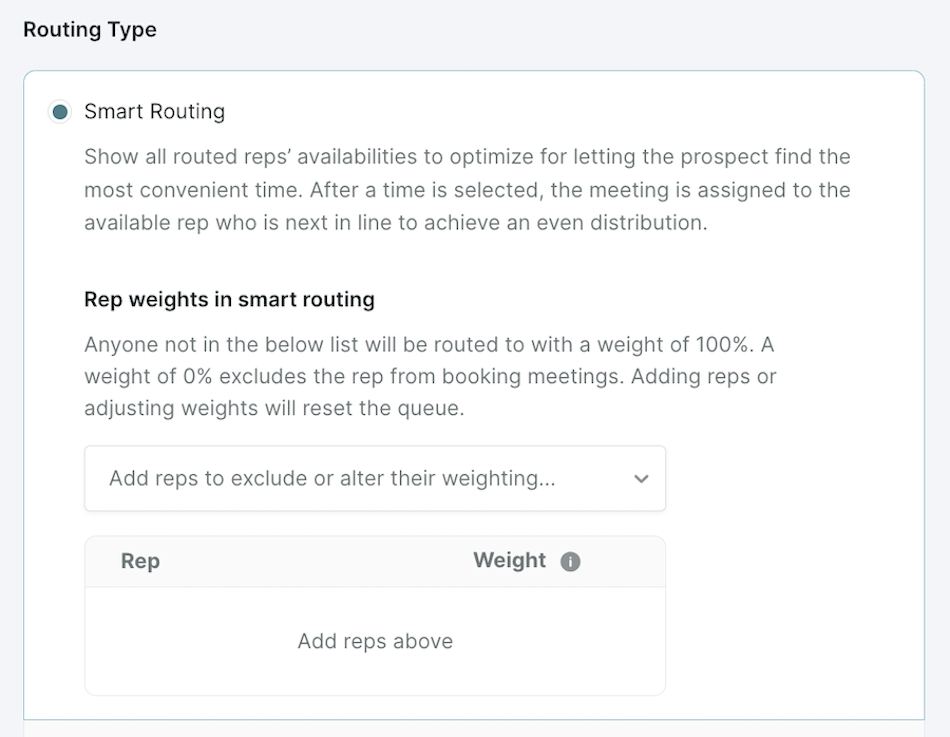
Smart routing
Smart routing ensures meetings are distributed fairly by focusing on the visitor’s preferred time first and then assigning reps based on availability and load.
How it works:
- Smart routing will display all routed reps’ availability to help the prospect find the most convenient time.
- Once a time is selected, the meeting is assigned to the next available rep to ensure an even distribution. Qualified selects the rep who has the fewest meetings booked in the last 30 days or since they were added to the user group.
Rep weights in smart routing (optional): Admins can assign weights to reps to control meeting distribution. By default, reps are assigned 100% weight, but you can increase or decrease this based on team needs. Example scenarios:
- Supporting a new rep: Assign a lower weight (e.g., 25%) to reps who are ramping up, so they receive fewer meetings as they acclimate.
- Rewarding high performers: Increase a top-performing rep’s weight to 200% to double their meeting load.
- Excluding reps: Set a rep’s weight to 0% if they are unavailable (e.g., on vacation).
Note: When you add or change a rep weight, Qualified resets the time window it uses to calculate the time-normalized number of meetings per rep. i
Round robin
Round robin offers a single rep's availability at a time. The queue is ordered by who booked a meeting least recently, and it is tracked per meeting type. If a rep is unavailable, they are skipped and the next rep in the queue is selected. If a meeting is canceled, the rep who owned the meeting is returned to the front of the queue.
Admins can enable round robin absence handling to automatically skip reps who are out of the office for a defined minimum amount of days. Learn more about robin robin absence handing here: Managing org-wide meetings settings
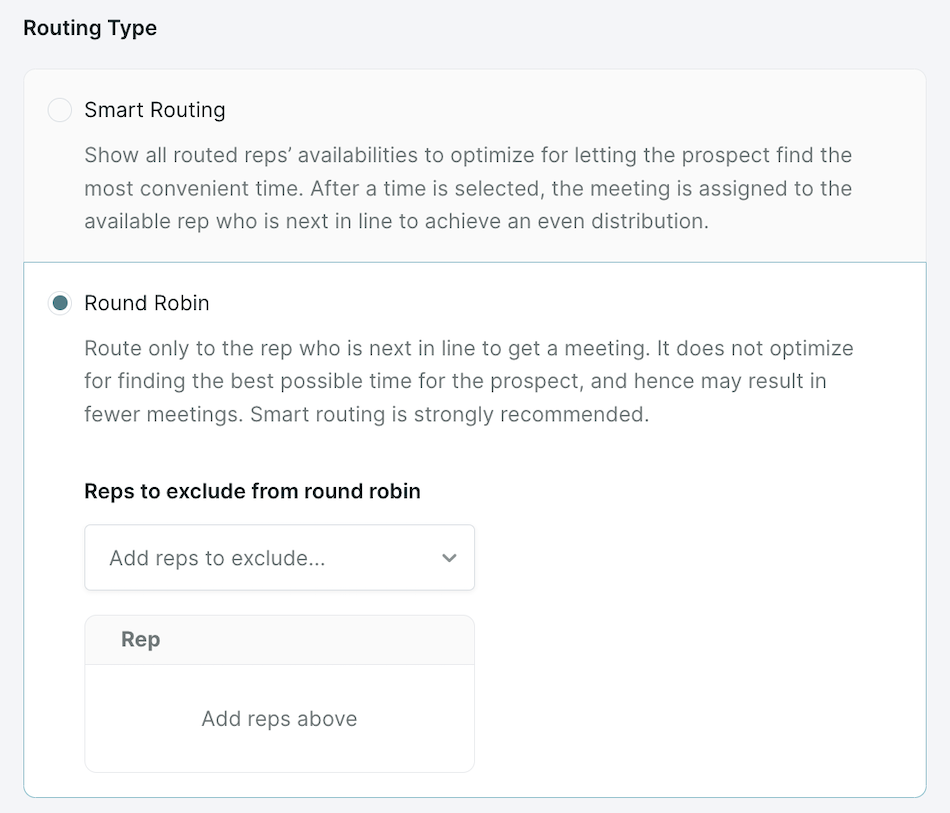
Smart Routing is recommended over Round Robin for optimizing meetings around visitor availability.
Email Confirmation & Reminders
Admins can customize the email invites and reminders that visitors receive for each meeting type under the Email Confirmation & Reminders tab.

Customize the Invite Email:
-
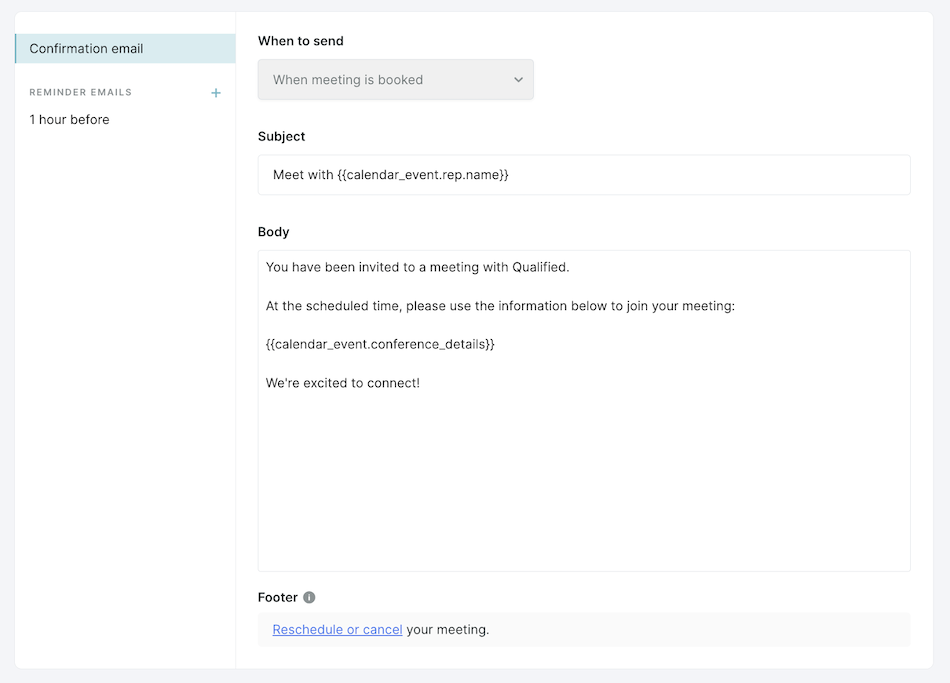
Click on Confirmation Email.
-
Update the subject line and body text of the invite email. The subject will appear as the meeting title for the visitor.
-
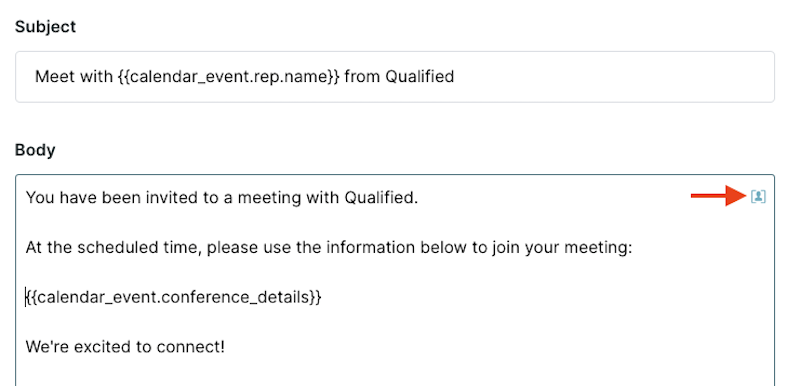
Add dynamic fields like the visitor's name or calendar event details by clicking into the email, then clicking the Lookup icon to select from the available options.
Setup reminder emails (optional):
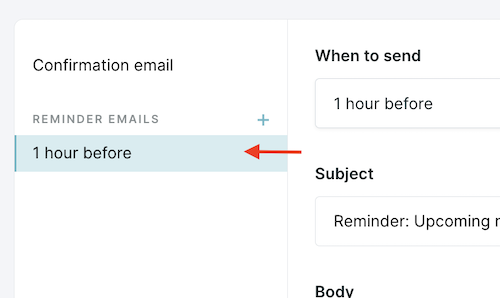
Under the Reminder emails section, admins can edit existing reminder emails or create additional reminders.
-
To edit an existing reminder email, simply click on that email within the list.
-
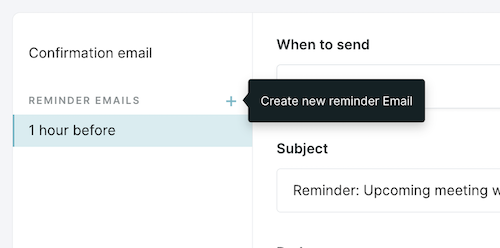
To create a new reminder email, click the + button to the right of Reminder Emails.
-
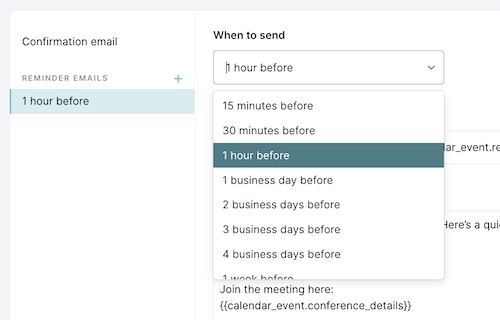
Select When to send the email from the available options.
-
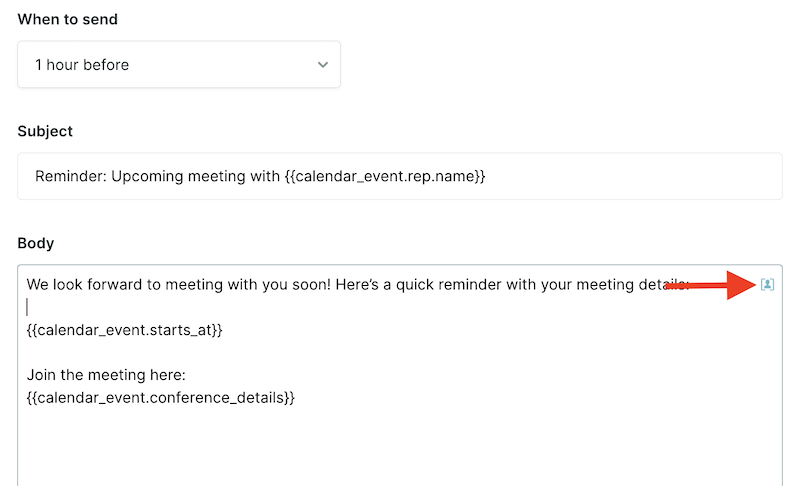
Customize the subject line and body test of the email. Also, add dynamic fields by clicking into the email, then clicking the lookup icon to select from the available options.
A few rules govern reminders:
- Business days run Monday through Friday. A reminder set to 1 business day before a Monday meeting arrives on the previous Friday.
- To delete a reminder, hover over the reminder title and click the x.
- A meeting type can run with no reminders. Delete each reminder and save the meeting type.
Use reminder emails to send pre-meeting materials or ask discovery questions ahead of time.
Enable meeting link sharing
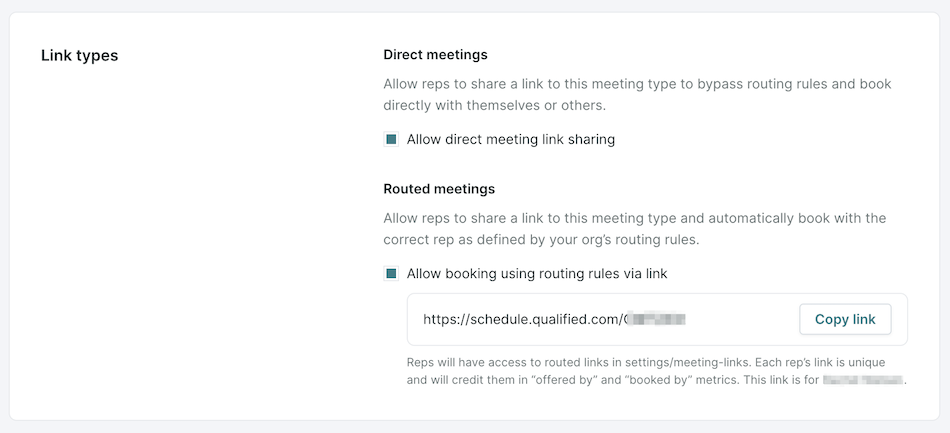
Allow reps to share meeting links directly with prospects be enabling the following options under the Meeting link sharing tab:

-
Direct links: Reps can share a link that allows visitors to book a meeting specifically with themselves or others.
-
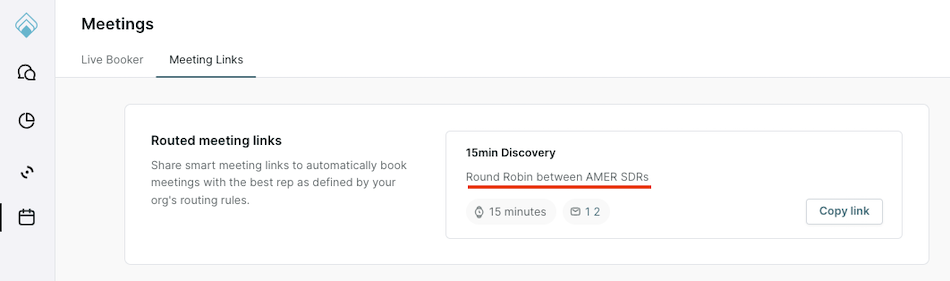
Routed links: Allow reps to share links that follow the meeting’s routing rules (e.g., round robin).
Add an Internal Description
For routed links, add an internal Description such as "Round Robin between AMER SDRs" to let reps know which routing rule applies.

Rep view
Add a visitor greeting
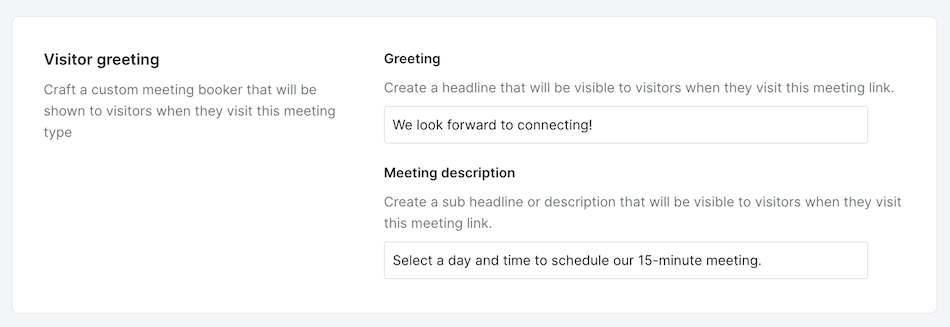
For direct and routed links, enter a title for the Greeting field and a subtitle for the Meeting Description. Both will be visible to the visitor when they click on a meeting link for this meeting type.
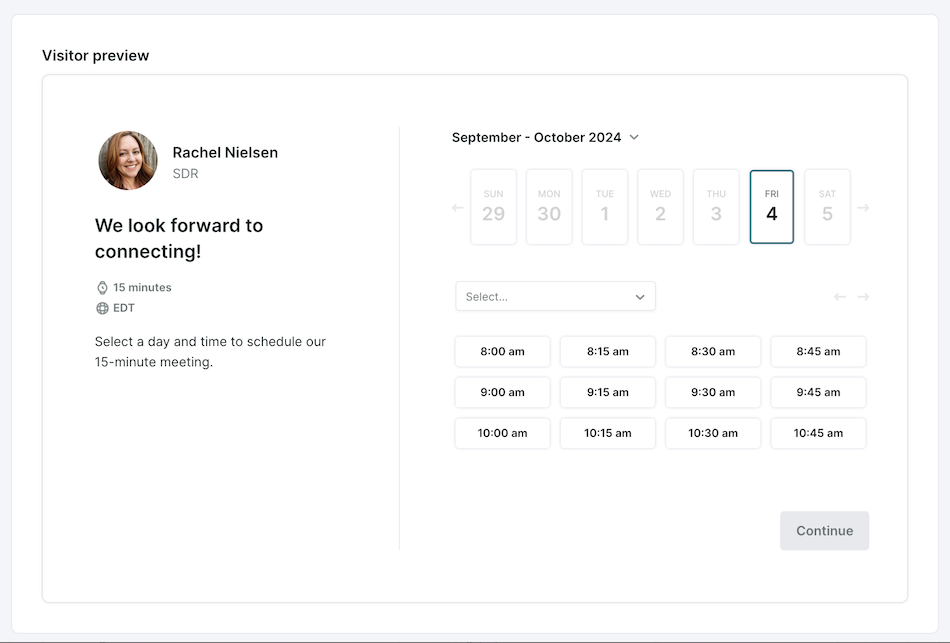
Once the visitor greeting has been added, admins can see a Visitor Preview below.
Canceling and rescheduling meetings
When the reschedule and cancel link is included for a meeting type, visitors can cancel or reschedule from the link in their invitation and reminder emails. Cancelling or rescheduling this way updates both the visitor's calendar and the rep's calendar.
Rescheduling offers the calendar of the rep the meeting was originally booked with. It does not run the routing rules again, which keeps the prospect from being passed between reps.
Cancellations made outside Qualified
Qualified also tracks cancellations and reschedules that happen directly on the rep's calendar, and reflects them in reports and in the round robin queue.
Some limits apply to these external updates:
- Qualified detects a cancellation when the event is deleted from the calendar. Declining an invitation or marking it as free does not currently register as a cancellation.
- Qualified treats any change to an event's start or end time as a reschedule, including converting it to an all-day event.
- Qualified tracks changes to events from 1 week in the past through 8 weeks in the future. A reschedule that moves an event into that range registers once it falls inside the window.
- If someone converts a Qualified-booked event into a recurring event, Qualified tracks updates made to the base event in the series.
- Cancelling or rescheduling outside Qualified leaves external meeting links such as Zoom or Microsoft Teams in place, and the change is not pushed to Salesforce. Cancel or reschedule from the Qualified UI to keep those in sync.



.svg)


