


When using automatic experiences to engage your website visitors, it’s important that your visitors see the right content and messaging you’ve configured for them. To control this, each automatic experience has a set of criteria that determines whether a visitor sees that experience or not. Criteria can be used in combination with boolean logic to target specific segments or broad categories of visitors.
Segment criteria
By URL
Customizing your experience to your visitor’s web journey can make sure the experience is relevant and timely.
All URL-based criteria allow the inclusion of specific parameters - see below:
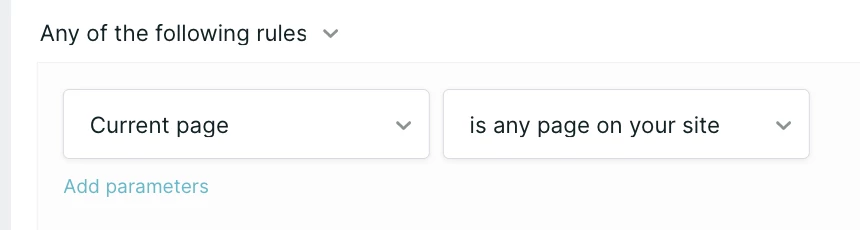
Then,
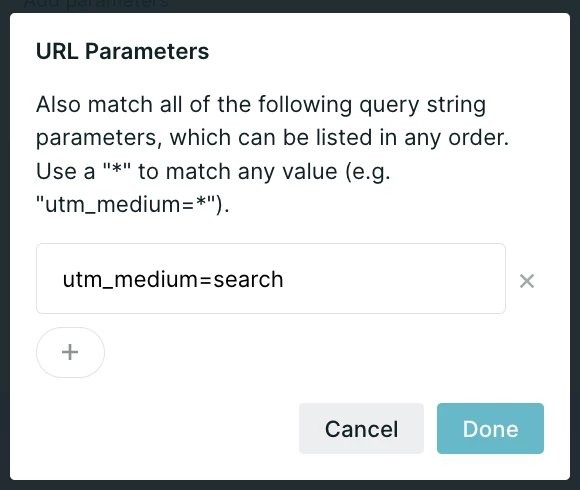
If multiple parameters are used, only URLs containing all parameters will match.
Current page
One of the most common ways to segment visitors is by the current page or sub-page that they’re viewing. This allows you to speak directly to the contextual experience the visitor is having, target landing pages for ABM campaigns, and more.
Page view
Page view refers to a visitor’s browsing history. While less common, this allows you to identify whether a visitor has seen a particular page before - be it a webinar link, a landing page, or a thank-you page after participating in an event.
Referrer
If you’re looking for visitors who have been directed to your website from a different site - i.e. a partner, a search engine, or an ad platform, use this setting to target the website that referred your visitor.
Visitor attributes
Split your visitors into logical categories like Ideal Customer Profiles, ABM accounts, and more.
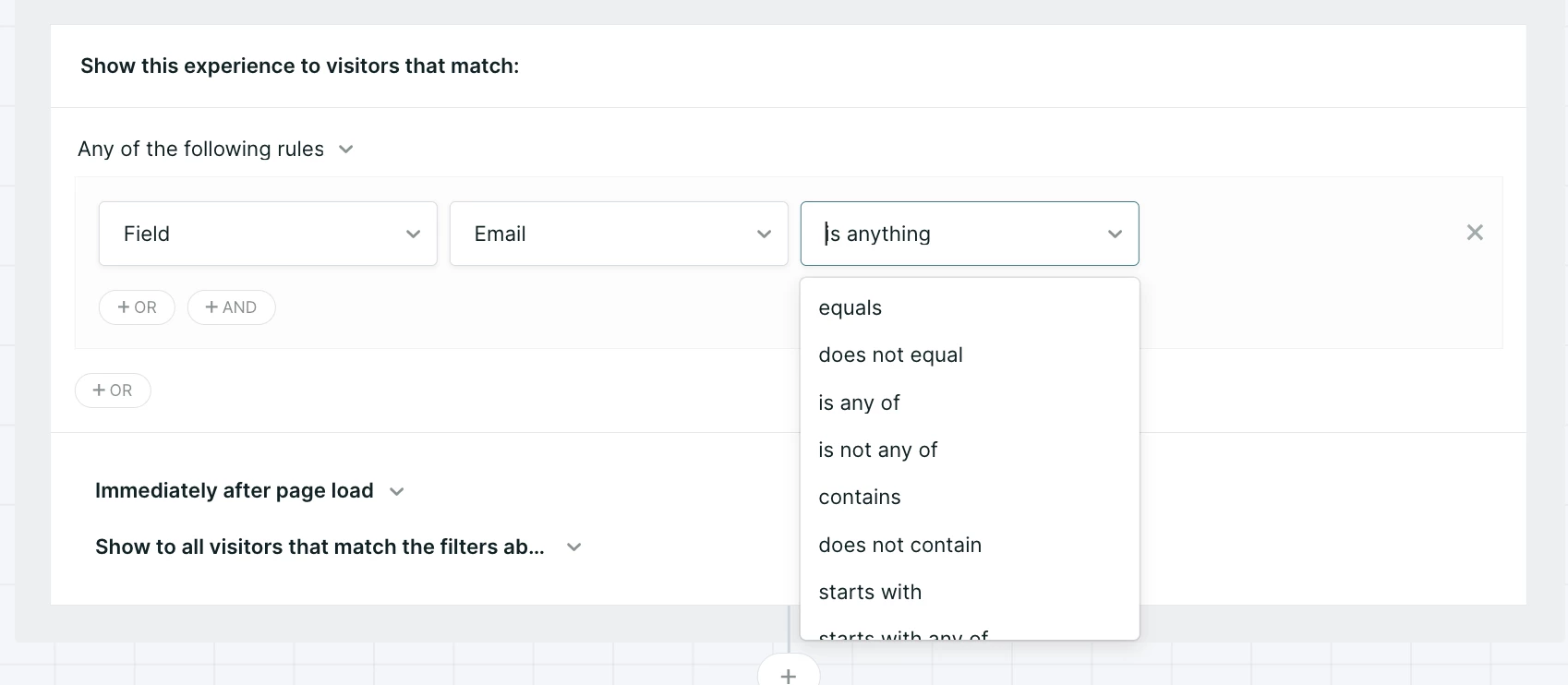
Most visitor attributes are filtered using combinatory categories such as is any of, is not any of, contains, excludes, etc.
Segments
You may have already configured segments to group your website visitors - use this setting to leverage those segments in your experience criteria.
Field
Select a visitor field or fields to evaluate for experience criteria.
Owner
If a visitor had a conversation or booked a meeting with a human sales rep, that rep becomes the owner of that visitor. Use this criteria to show an experience based on that owner’s status in Qualified.
Note that unlike other visitor attributes, Owner has its own set of logical criteria. The criteria is as follows:
- Is Assigned: There is an assigned owner in Qualified for the visitor
- Is Unassigned: There is no assigned owner in Qualified for the visitor
- Is Available: The assigned owner is available for conversations in Qualified
- Is Unavailable: The assigned owner exists in Qualified but is currently unavailable for conversations.
Location
Filter visitors based on their physical location as identified by their IP address, either by country or US state.
Note that because location is determined by IP address, visitors who are using VPNs may appear in a different location
Device
Filter users who are viewing your website on mobile devices, tablets, or desktop/laptop browsers.
Visit count
Filter users based on the number of previous visits to your website.
Account attributes
Qualified Signals
Segment visitors based on the engagement intent and research intent they are showing on your own and third party websites.
Integrations
Read data directly from your tech stack, including Salesforce, marketing automation platforms, and more.
Like visitor attributes, most integration fields are filtered using combinatory categories such as is any of, is not any of, contains, excludes, etc.
Salesforce
Filter on fields from the Lead, Contact, and Account Salesforce objects as well as Target Account lists in Qualified. Additionally, filter on related attributes like campaign membership or opportunity stage.
Marketing automation platforms
Filter on people records in Pardot, Marketo, Hubspot, or Eloqua.
Sales engagement platforms
Filter on email sequence activity in Outreach or Salesloft.
Visitor enrichment profiles
Filter on visitor and firmographic data from Clearbit, Demandbase, 6Sense, and ZoomInfo.
Clickthroughs
G2
Filter on visitors who arrived on your site via link from G2
Advertising
Filter on visitors who arrived on your site via links from Facebook, LinkedIn, or Google.
Experience timing
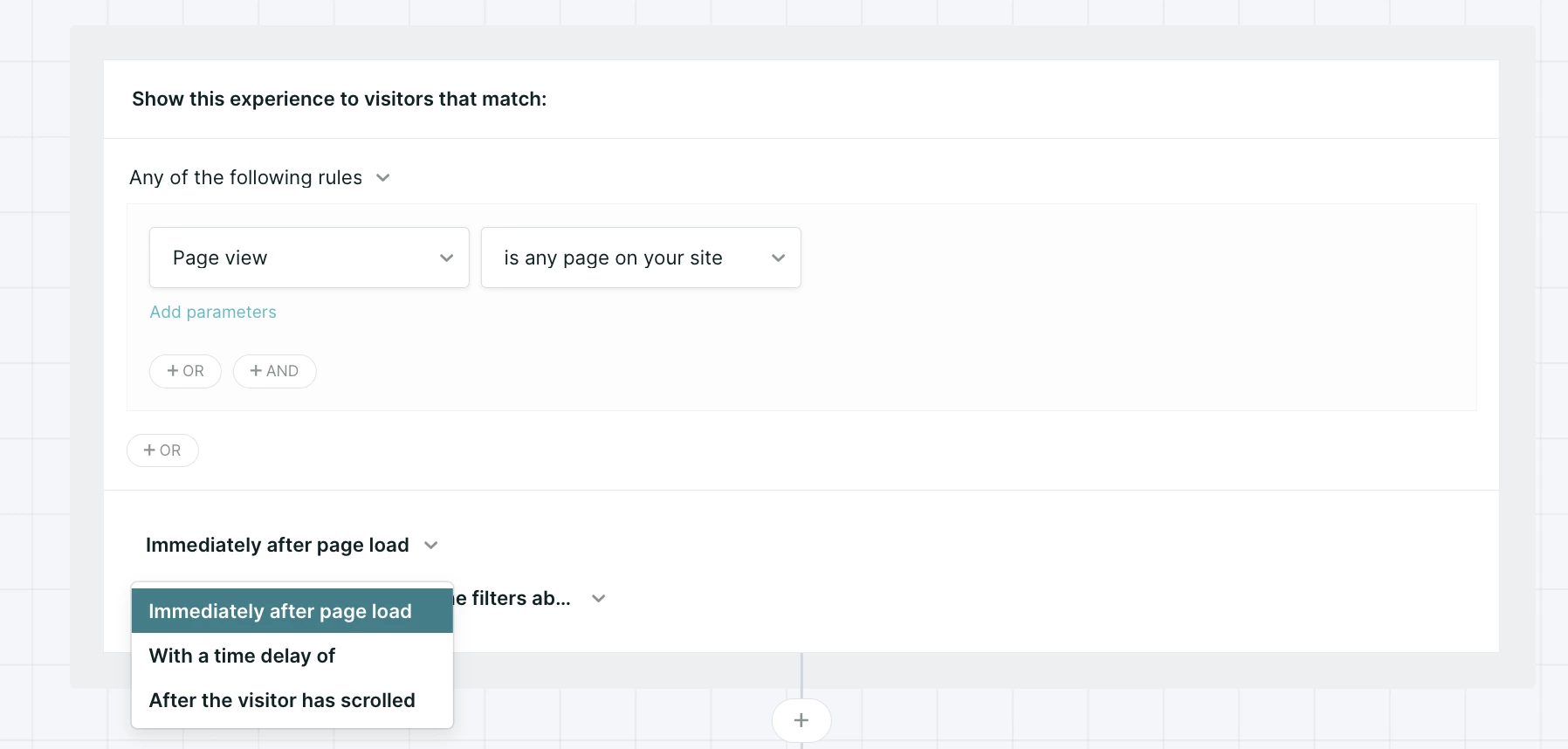
Control the timing or delay of your experience trigger.
Qualified’s recommendation - and best practice - is to always trigger your automatic experiences as soon as your visitor lands on the page, to make sure every prospect has the chance to engage. If required, there are options to customize different timing.
Scroll-based delay
Set a percentage of the page that the visitor must scroll before the experience begins.
Time-based delay
Set a timed delay (in seconds) before the experience begins for the visitor. Note that this will delay all experience steps - not just messages sent in the messenger.
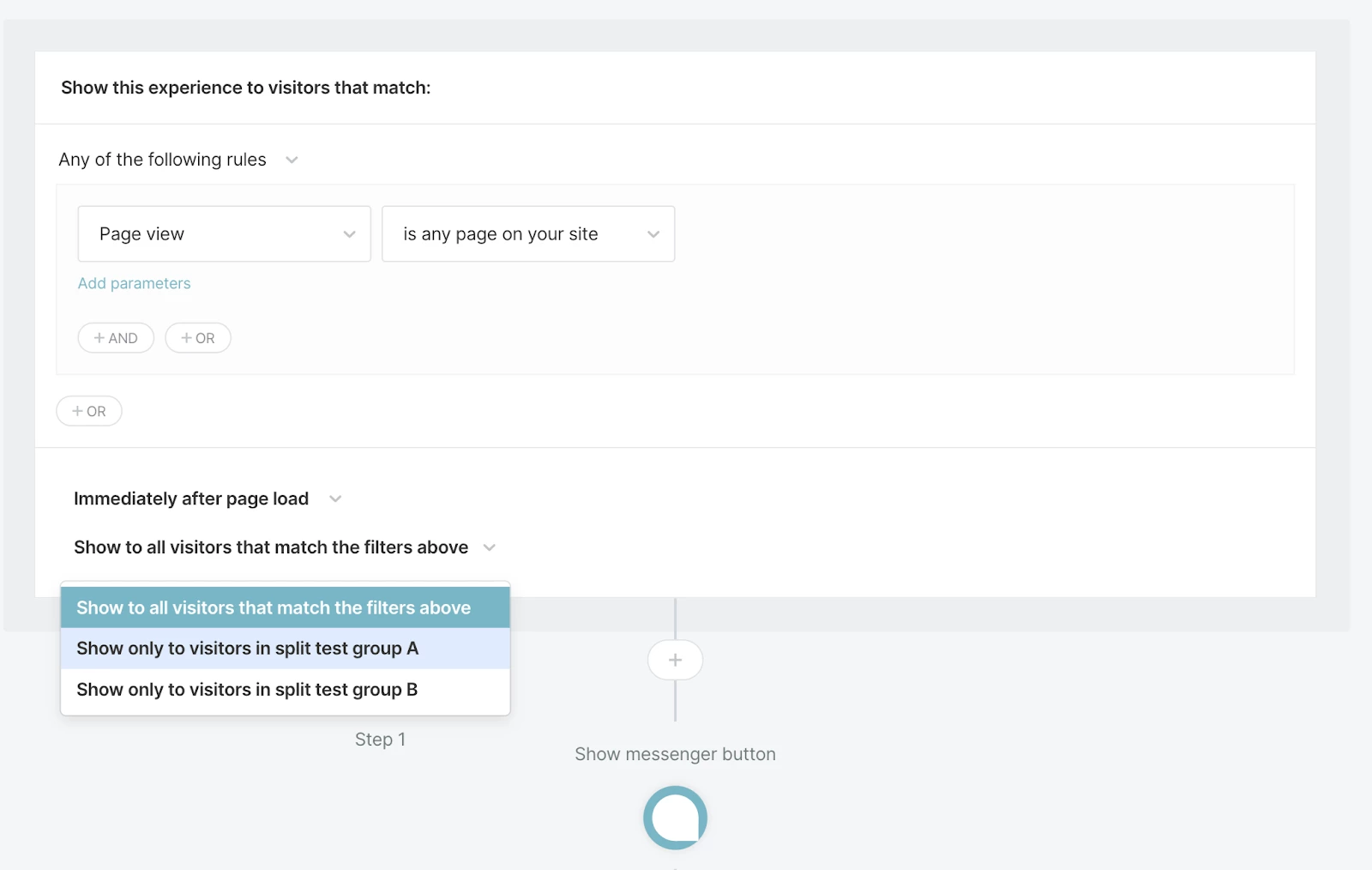
AB testing
All visitors to your website are automatically split evenly between A and B test groups. Use this setting to show an experience to only one of these groups.
To AB test experiences, create two copies of your experience - set one to show to group A and the other to group B.
Pro Tip: AB tests work best on measurable changes in experiences that have a reasonably high number of impressions. If you try to AB test several changes at once, you may not know what drove one experience to perform better than the other. If you AB test experiences aimed at a small audience, it may take a long time to see statistically relevant results.



.svg)


